The DriverLink app is used to provide vehicle information to drivers.
It is also used as a phone tracking app.
Before a driver may utilize the DriverLink app, the fleet manager must create a Driver ID on ProFleet for them. This guide will cover how one may do so.
Steps
1. Log in to ProFleet. Click Setup (you must have Administrator rights to do this).
2. Click the "Driver IDs" tab, and then click the "Add Driver ID" button at the bottom of the table.
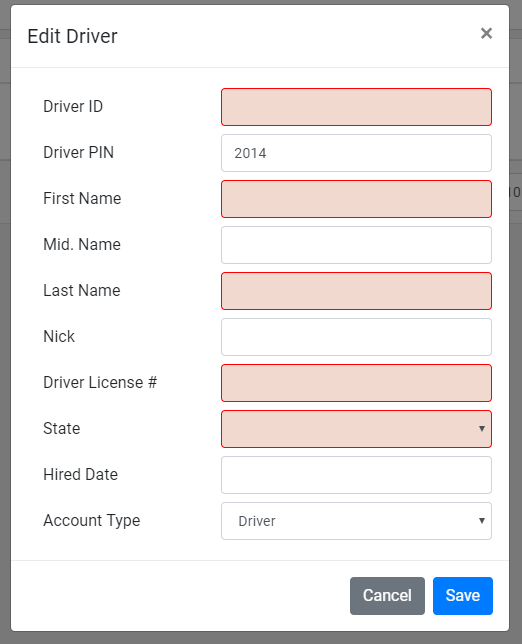
3. A small window will appear, in which you may enter your driver's information. Enter your preferred Driver ID (create your own) and Last Name. Optionally enter the driver's First Name, License # and State.
If you want to set a Driver PIN, enter it. If you want the Driver to be prompted to set their own PIN at first login leave it at 2014
Click the "Save" button at the bottom of the window.
3. Download and install the DriverLink app on a mobile device from https://btracking.com/downloads-pro-fleet/
4. Open the DriverLink app. Make sure GPS tracking on the phone is turned ON (if you will be tracking the phone).
To log in to DriverLink enter:
- Group ID (this will be the name of your Btracking ProFleet account)
- Driver ID (this will be the Driver ID you created in Step 3)
- Password (this is the PIN created in Step 3)
5. DriverLink is now installed. Drivers can see routes assigned to them. If you have requested the phone be tracked, it will be visible on the ProFleet platform map on your desktop or mobile platform app.