This guide is intended to walk you through resetting your password in the Enterprise Platform IntelliHub. If these troubleshooting steps do not resolve the issue, please submit a ticket to support@btracking.com
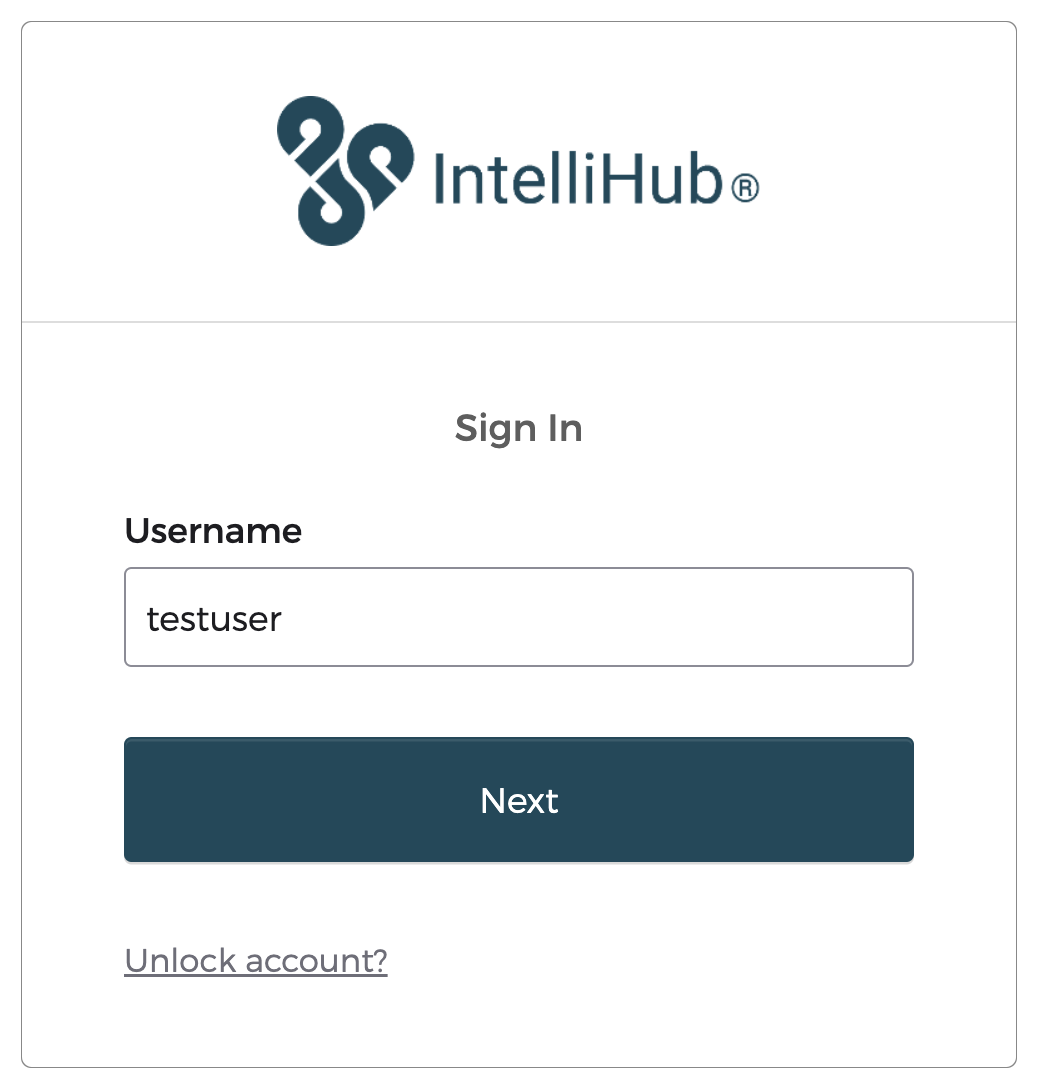
Step 1
First, enter your username and tap “Next”
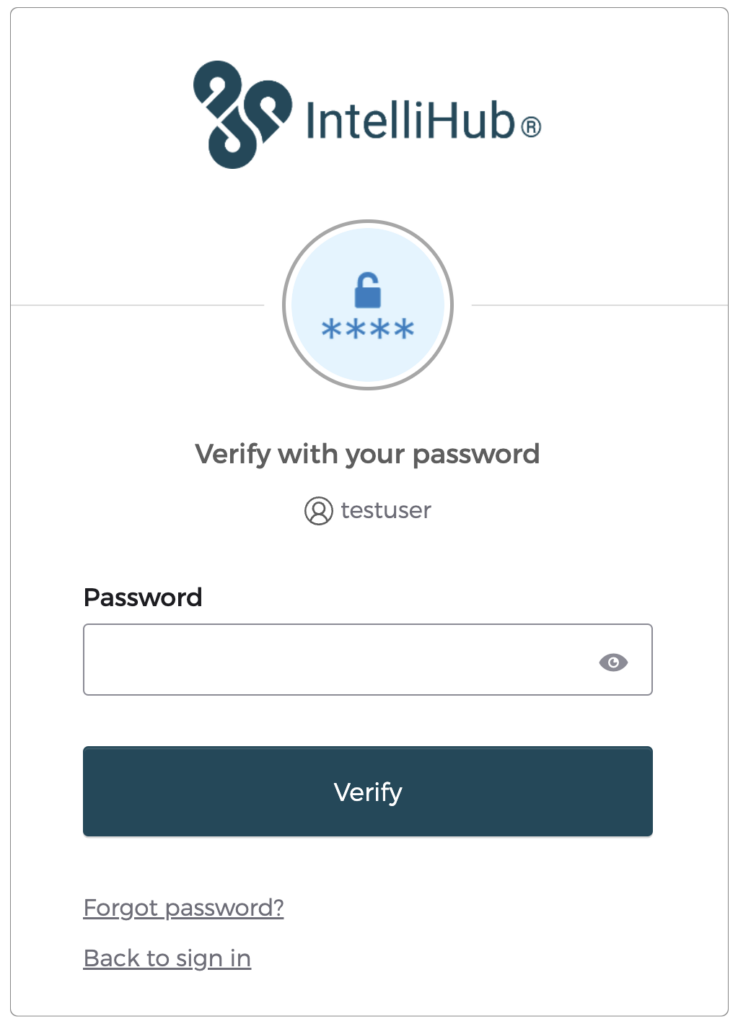
Step 2
Then, on the Password screen, click “Forgot password?”
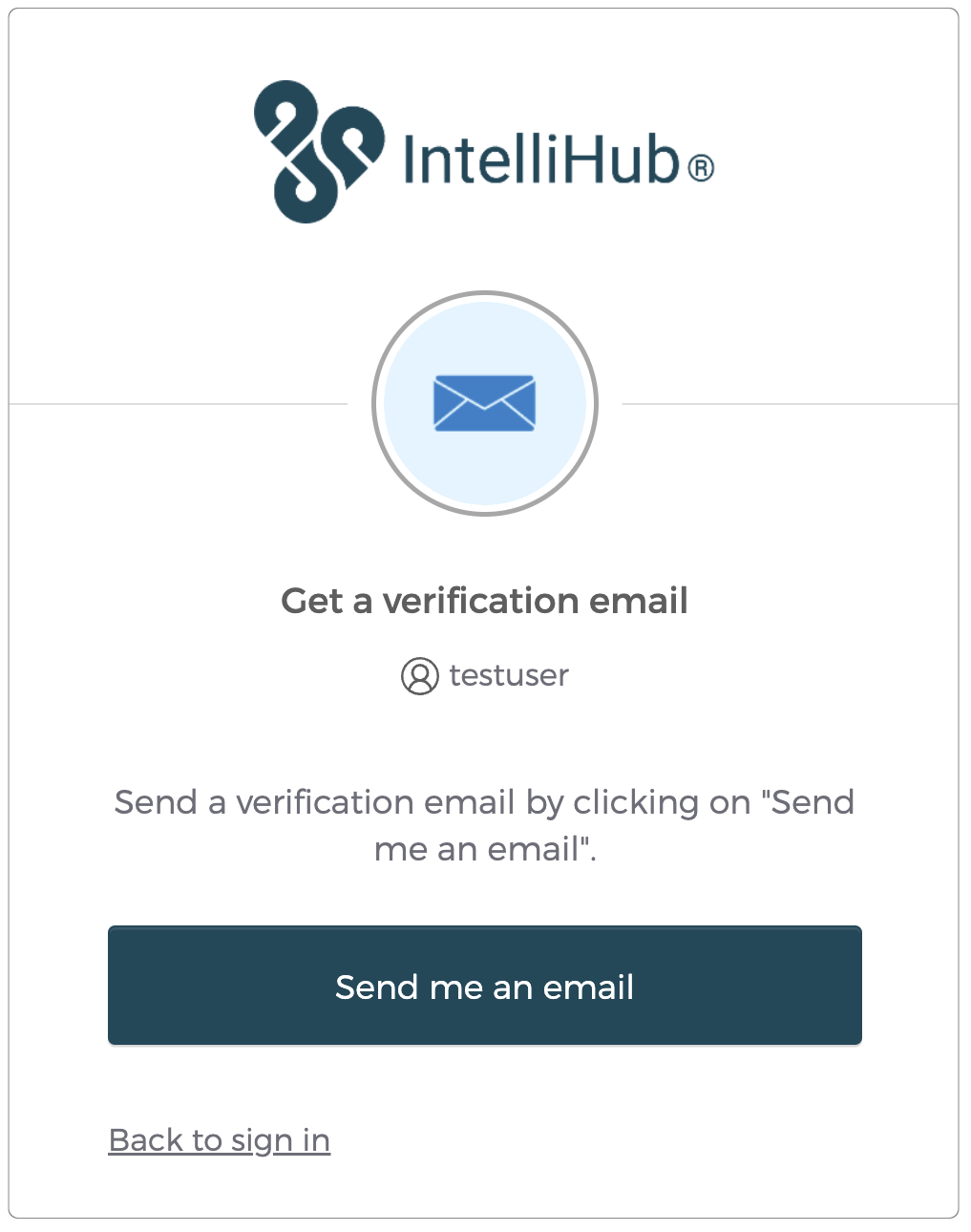
Step 3
IntelliHub will offer to send you an email, please make sure to click “Send me an email”
You should receive an email from Okta with a
6-digit code. Copy the code down or keep it handy; you will need it in the next step.
If you do not receive this email from Okta within 15 minutes, please contact FTS support to resolve your issue.
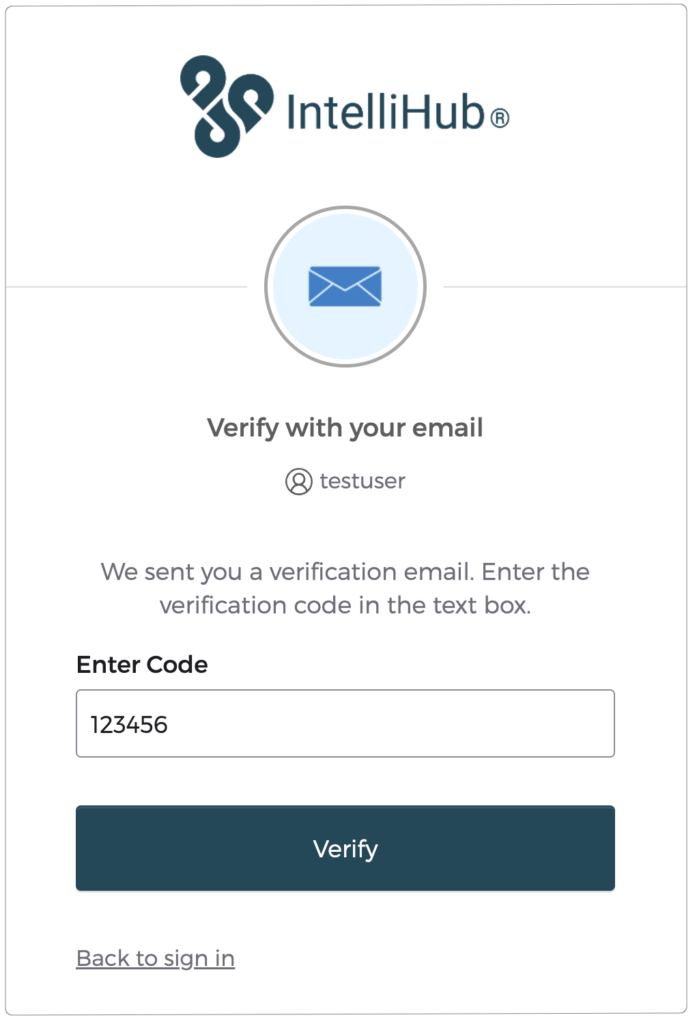
Step 4
Enter the code you received into the app, and tap “Verify”
Step 5
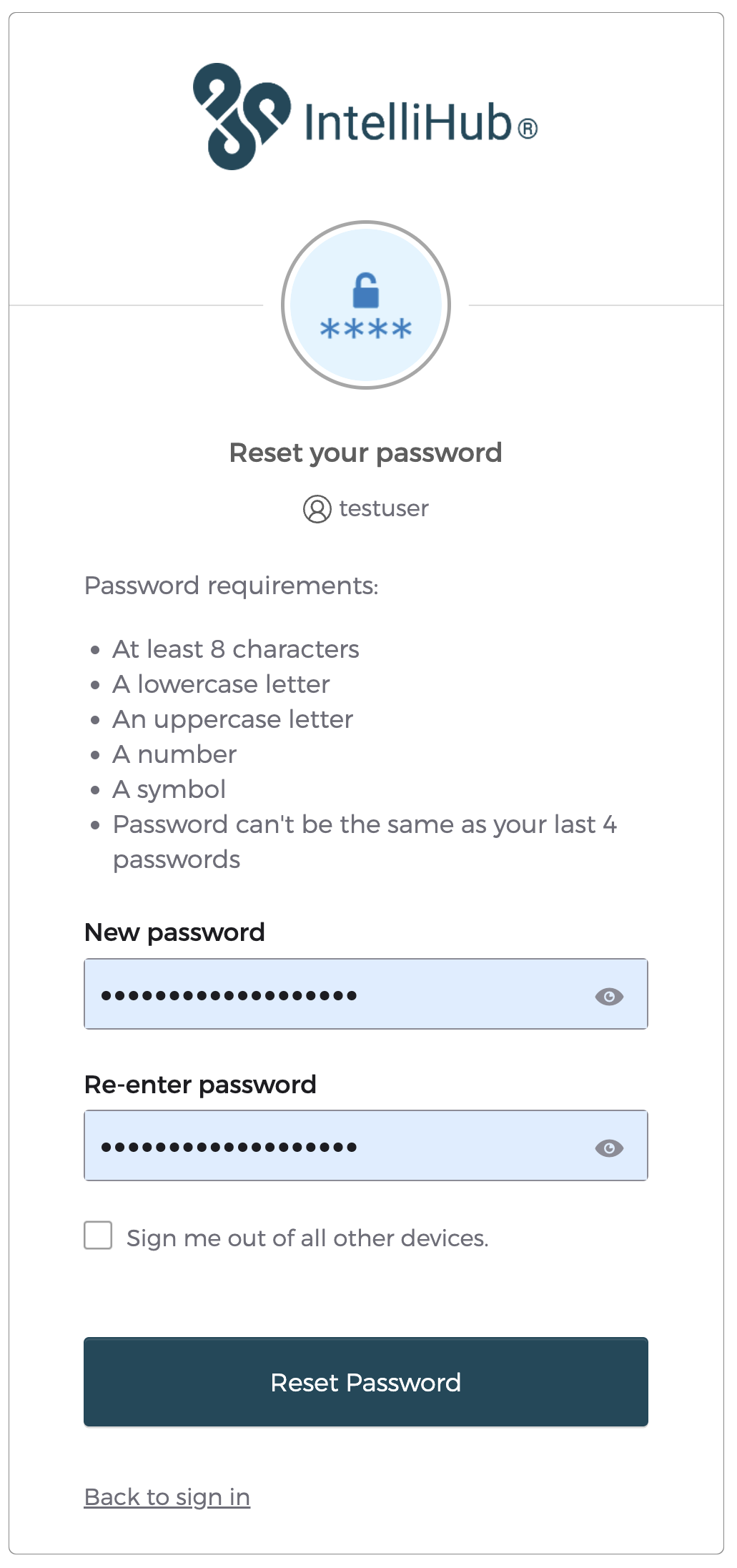
Once verified, you can now set a new password (make sure to store your password in a secure location for future use). Make sure you enter the new password twice, and then click “Reset Password” at the bottom.
Once you have set a new password, you will be logged in.
We recommend signing out one time and testing your new password, to make sure it’s correct, and that you know it.