This article explains how to Dispatch vehicles from the Enterprise Platform's Intellihub dashboard. Users must have Dispatch rights; please contact us if Dispatch rights are needed.
Dispatch is included with the Enterprise Platform for all users in the basic package.
See also Driver Dispatch using the Field Warrior app.
Overview
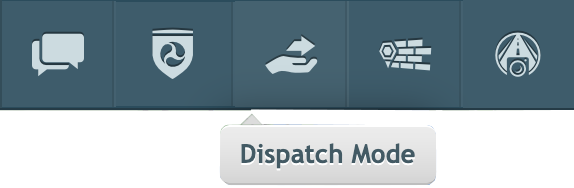
Access the Dispatch screen by clicking on the Dispatch icon at the top of the main IntelliHub dashboard. (Pro tip: Hover over each icon will give a text description of that icon)
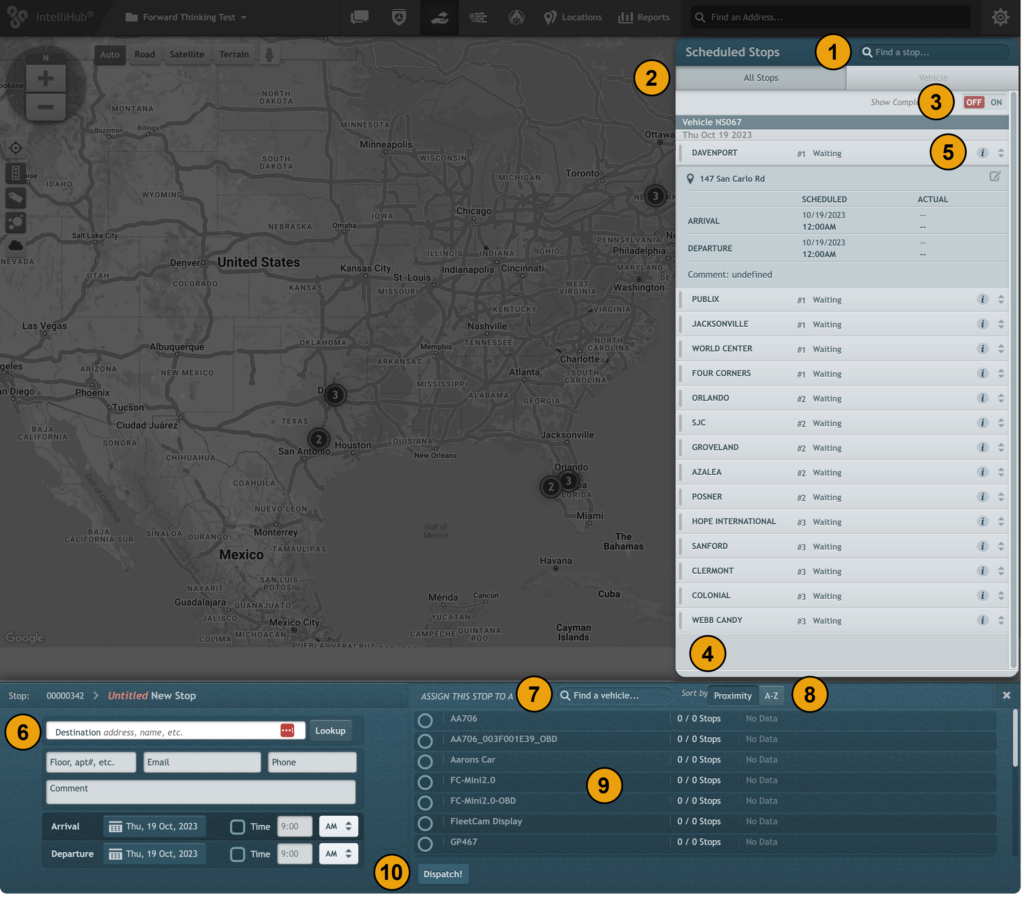
On the Dispatch screen, you can:
1) Search for a stop
2) View all stops or only view stops for the selected vehicle
3) Toggle showing completed stops
4) View your routes and unassigned stops
5) View additional details about the stop
6) Enter information about a new stop
7) Search for a vehicle to assign a stop to
8) Toggle between sorting vehicles alphabetically or by proximity to the stop
9) View the list of vehicles
10) Dispatch the stop to a vehicle
Note: If Dispatch is clicked without assigning the stop, the stop will be unassigned.
To Dispatch Vehicles:
Click on Dispatch Mode
Start typing in the name of the location in the address box and it'll be suggested
Click on it
Click the circle next to the vehicle to select it (this list can be sorted by proximity)
Set date-times for arrival and departure if you want
Click "Dispatch!"